
Enabling Sentinel Health using CI/CD
As I have previously discussed, I am a huge fan of the Health Feature within Microsoft Sentinel. I feel it provides a unique insight into the SIEM that everyone should be working in.
Enabling manually
Enabling Sentinel Health using the portal is pretty straight forward, as described on the Microsoft Learn page. To enable it:
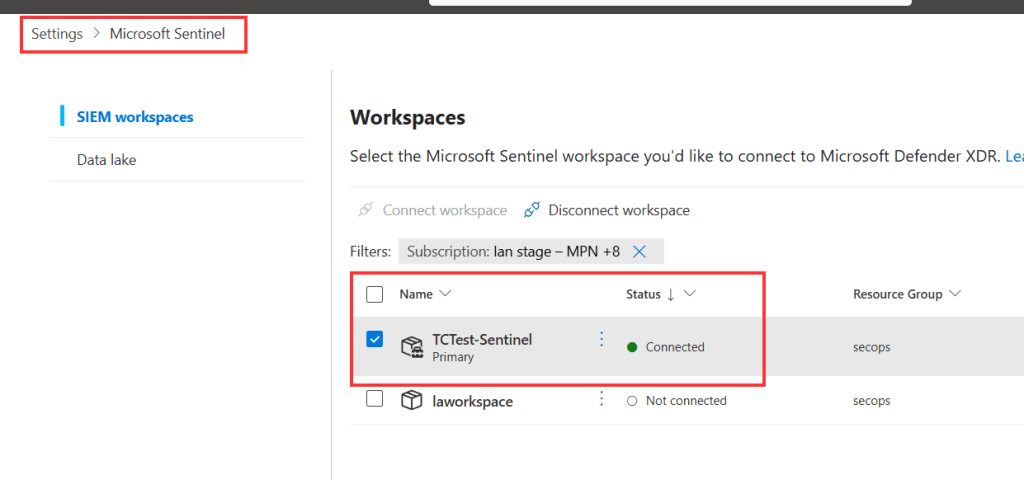
- Navigate to security.microsoft.com
- Select settings > Microsoft Sentinel.
- Within this view, select your Sentinel workspace.
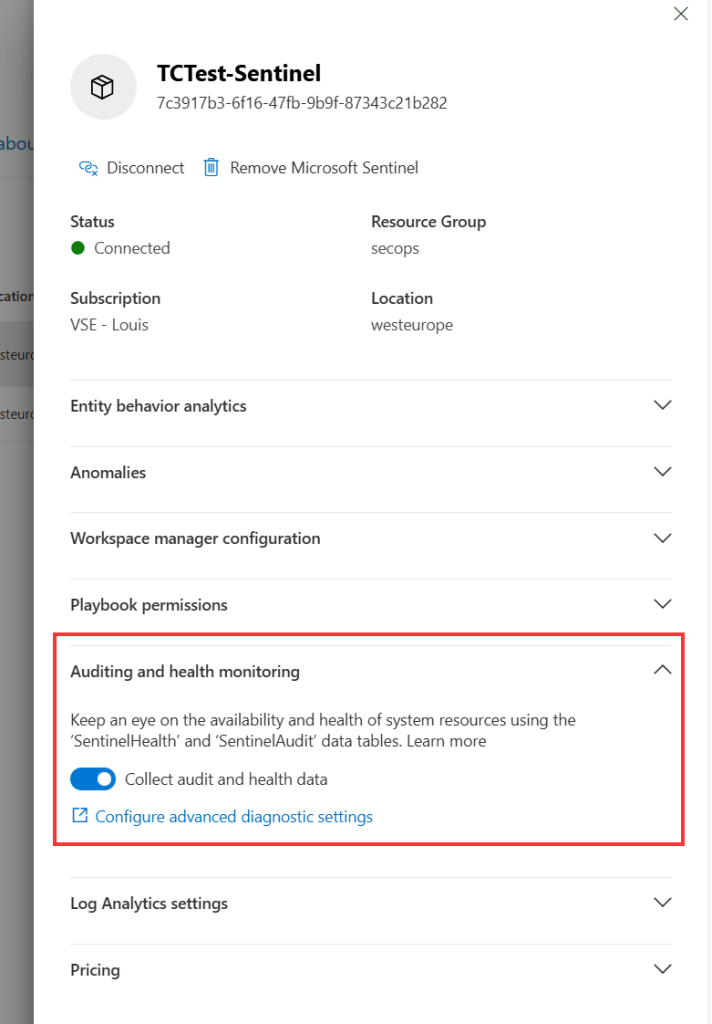
Within the workspace details, you will find ‘Auditing and Health Monitoring. Enabling it will configure diagnostic settings on the Azure resource and ensure the logs are ingested into the current Sentinel environment.
The need for CI/CD
If you are doing this once, the portal might be fine. But in an enterprise or MSSP scenario, using CI/CD for your SIEM is a must. This is for a couple of reasons:
- Speed: Automating the configuration removes manual configuration. Depending on the number of environments in management, this can save a lot of time.
- Four eyes principle: Changes to the SIEM should be approved by a number of distinct engineers, to ensure nobody executes changes behind some-one’s back.
- Consistency: By pushing the configuration using CI/CD, we are sure the same configuration exists in all environments.
Automation Configuration
To automate this, there are two main components:
- ARM Template: This contains the actual configuration of the health settings.
- Deployment code: Executes the deployment of our template.
ARM Template
Below, you can find a sample ARM template for the configuration. Some notes:
- The name (as defined on line 13) is just the display name for this within the portal.
- The most important thing is ‘CategoryGroup’ as defined on 18.
- By enabling allLogs, which enable all current and future health monitoring logs.
- We don’t enable metrics, as these are typically not interesting for a SOC context.
- The destination for the logs is Log Analytics, which uses the workspace parameter as defined on line 27.
- For Sentinel configuration, I default to ARM templates as this is also what Microsoft is defaulting towards. The same can be achieved with a Bicep file as well.
{ "$schema": "https://schema.management.azure.com/schemas/2019-04-01/deploymentTemplate.json#", "contentVersion": "1.0.0.0", "parameters": { "workspace": { "type": "String" } }, "resources": [ { "type": "Microsoft.Insights/diagnosticSettings", "apiVersion": "2021-05-01-preview", "name": "Sentinel Health Monitoring", "properties": { "logs": [ { "category": null, "categoryGroup": "allLogs", "enabled": true, "retentionPolicy": { "days": 0, "enabled": false } } ], "metrics": [], "workspaceId": "[resourceId('Microsoft.OperationalInsights/workspaces', parameters('workspace'))]", "logAnalyticsDestinationType": null }, "scope": "[concat(resourceId('Microsoft.OperationalInsights/workspaces/providers', parameters('workspace'), 'Microsoft.SecurityInsights'),'/settings/SentinelHealth')]" } ]}Deployment code
The deployment code is quite simple:
- It retrieves all setting files from a subfolder in Azure DevOps.
- It loops over all files.
- The workspace parameter is provided.
- The template is executed.
param( [parameter(Mandatory = $true, HelpMessage = "Enter the SusbcriptionId Id")] [string]$SubscriptionId, [parameter(Mandatory = $true, HelpMessage = "Enter the ResourceGroupName")] [string]$ResourceGroupName, [parameter(Mandatory = $true, HelpMessage = "Enter the WorkspaceName")] [string]$WorkspaceName)#region Sentinel SettingsSet-AzContext -SubscriptionId $SubscriptionId# arraylist for all templates$SettingsTemplates = [System.Collections.ArrayList] @()# get general template path$GeneralSettingsFolderPath = "$($Env:BUILD_SOURCESDIRECTORY)/Security/SentinelSettings"# fill arraylist with general templates$SettingsTemplates = Get-ChildItem -Path $GeneralSettingsFolderPath -Filter *.json# output number of general templates foundWrite-Host "Found" $SettingsTemplates.count "general settings templates"# initialize a TemplateParameterObject with the name of the workspace to deploy to$TemplateParameterObject = @{ workspace = $WorkspaceName}foreach($setting in $SettingsTemplates){ Write-Host "Deploying $($setting.Name)" $ARMTemplate = $setting | Get-Content -Raw | ConvertFrom-Json -AsHashtable try { Write-Host "Starting deployment" $Result = New-AzResourceGroupDeployment -ResourceGroupName $ResourceGroupName -TemplateObject $ARMTemplate -TemplateParameterObject $TemplateParameterObject -ErrorAction Stop Write-Host "Finished deployment" return $Result } catch { Write-Error $_.Exception.Message break }}#endregion Sentinel SettingsCategories

 365 by Thijs